

The IARF Network
Hundreds of IARF members from liberal religious and humanist traditions around the world meet here to take courses together, talk, plan and read. The Network is open to people in our member organisations and chapters, and to individual members.
This guide shows how it works, one short video at a time.
Contents
Joining
Joining is free and takes a few minutes. You create an account, tell us a little about yourself, and a person at IARF approves it.
Create an account
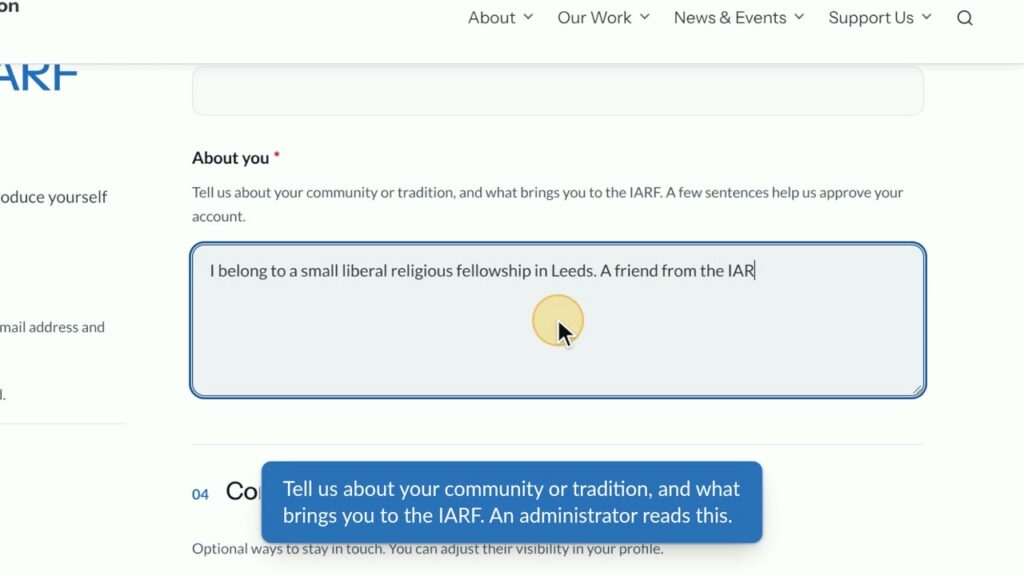 Watch 1:33
Use Sign Up at the top of any page, with your Google account or with an email address and a password. The form asks for your name and country, your connection with IARF, and a few sentences about you.
Signing in while you wait
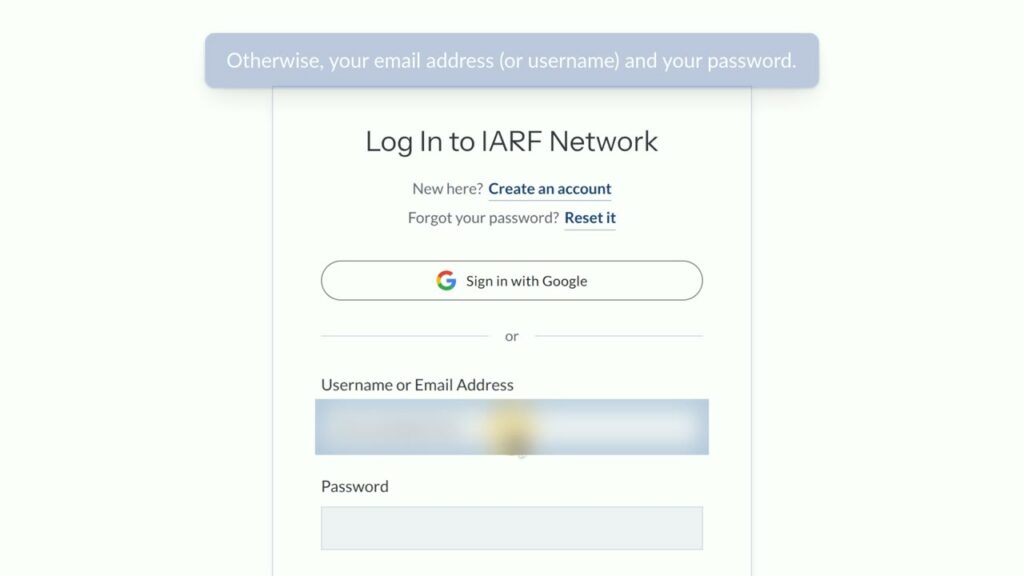 Watch 0:38
You can sign in straight away and read course pages. Registering for courses, and the rest of the Network, opens once your account is approved. We email you when it is.
Questions
Who can join?
The IARF Network is open to people in IARF member organisations and chapters, and to individual members of IARF. Speakers, partners and other guests we invite can join too: choose “I’ve been invited” on the form.
Not a member yet? You can apply for individual membership.
Why do accounts need approval?
A person approves every new account, to keep the Network a safe meeting place for our members. In About you, tell us about your community or tradition, and what brings you to the IARF. A few sentences are enough.
How long does approval take?
Usually a few hours. We email you when your account is approved.
Can I use the Network before my account is approved?
You can sign in and read course pages. Registering for courses, messages and everything else open once your account is approved.
What if signing up does not work?
Write to us at [email protected] and tell us what happened. We will sort it out with you.
Courses and series
The Free Religion Institute runs its courses on the Network: webinars with a single session, and series that meet on Zoom over weeks or months. Registering is free.
Find a course and register
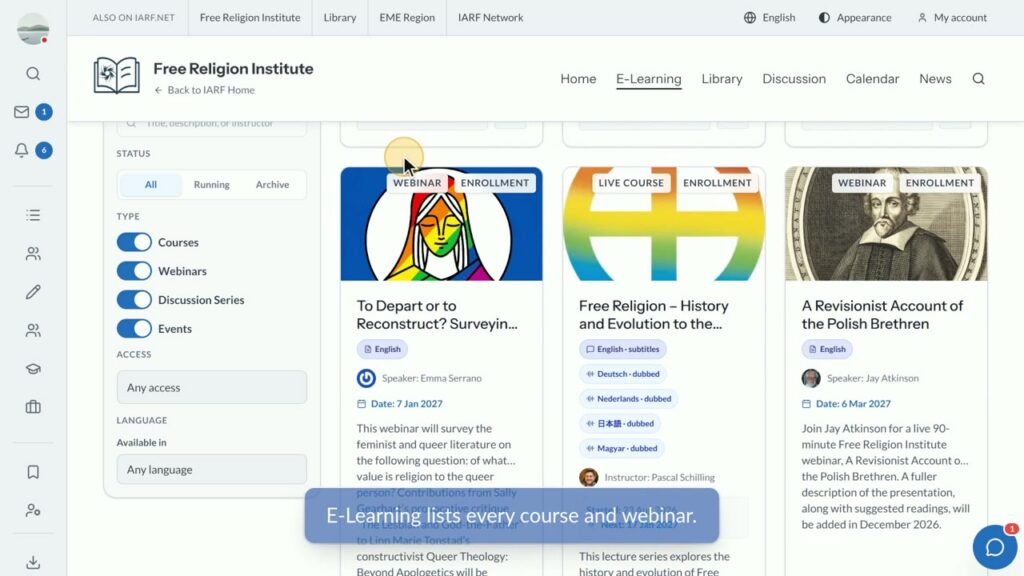 Watch 0:30
E-Learning lists every course and webinar, current ones first. One registration covers every session in a series, including sessions added later.
Your sessions
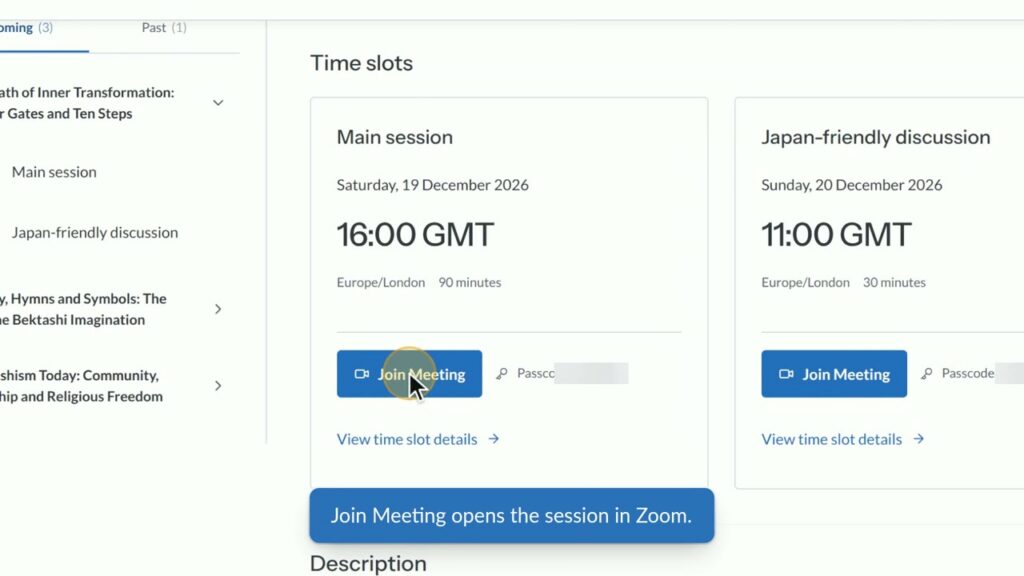 Watch 0:45
A course page lists its upcoming and past sessions, in your own time zone. Join Meeting opens the session in Zoom, and a reminder comes the day before.
Recordings, subtitles and audio languages
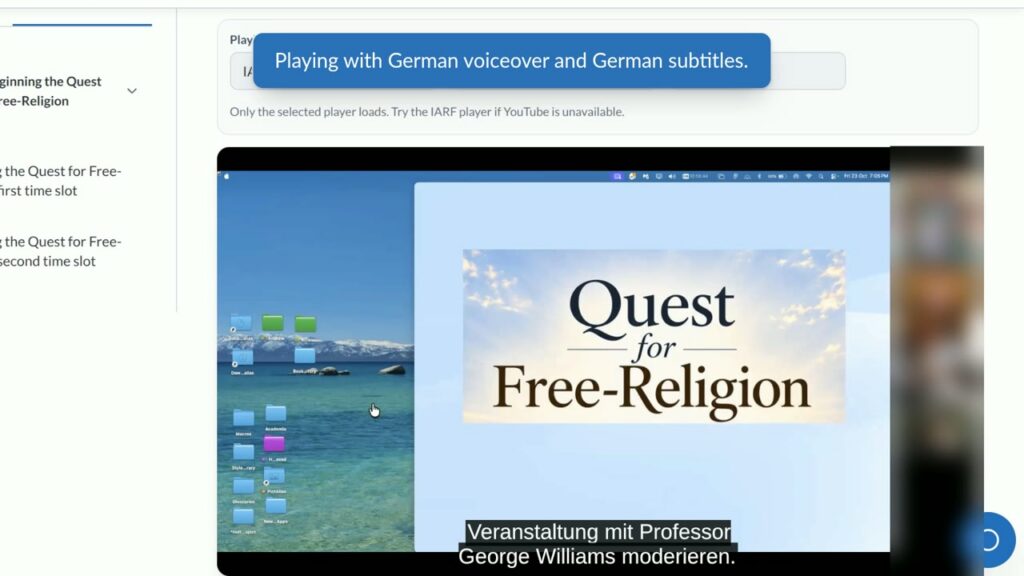 Watch 0:39
Past sessions keep their recordings, which appear about a week after the session. Where a recording has them, choose subtitles and a dubbed audio language. This video has sound.
Can’t make a session?
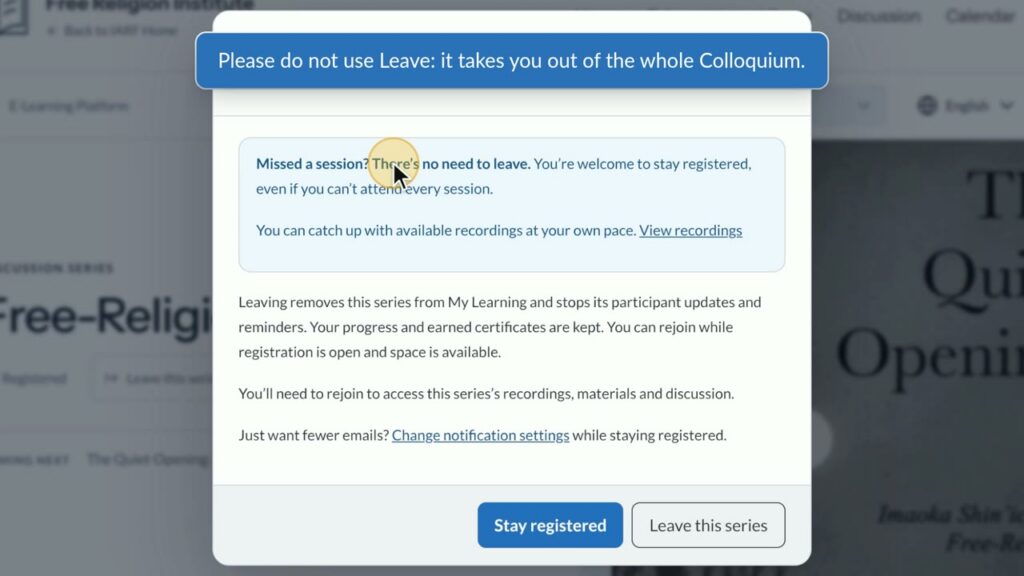 Watch 0:28
You do not need to do anything. Stay registered and watch the recording later.
Questions
Do I register for each session?
No. One registration covers every session in the series, including sessions added later.
Will registering put me on a mailing list?
No. Registering signs you up for that course only. Its news and discussion come by email, and on the course page you can choose every post, announcements only, a summary, or nothing.
Why are there two times?
Some series meet twice on the same day, so that members in more time zones can join live. Both times are the same session: join whichever suits you.
Why does the reminder show only one time?
The reminder email lists both times. A notification on your phone has room only for the first.
What if I miss a session?
Nothing changes: you stay registered. The recording appears on the course page about a week after the session.
What does “Leave this series” do?
It takes you out of the whole series. Its updates and reminders stop, and you need to register again to see its recordings, materials and discussion. Your progress and certificates are kept.
If you only want fewer emails, change your notification settings instead.
Are there self-paced courses?
Not yet. A self-paced course has no live sessions: you work through it in your own time.
Your profile and settings
Your profile introduces you to other members. Your settings decide the language you see and which emails reach you.
Your profile
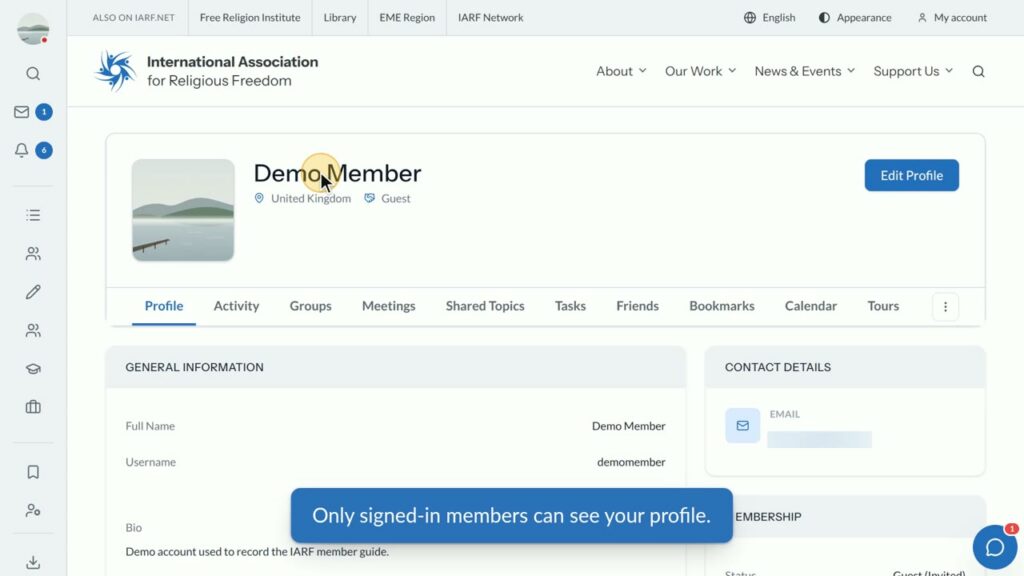 Watch 0:30
Add a photo and a few words about yourself, your community and your country. Only members signed in to the Network can see your profile.
Language, time zone and emails
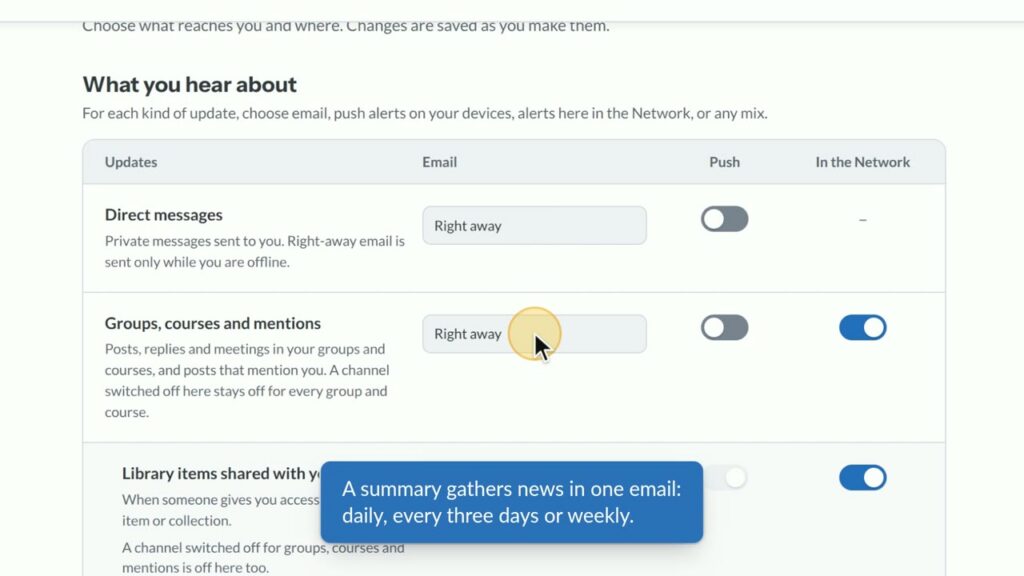 Watch 0:34
Choose your language at the top of any page, and your account remembers it. Dates and times follow your device’s time zone. In your notification settings, choose which emails you get and how often.
Questions
Who can see my profile?
Members signed in to the Network. The email address you sign in with stays private: other members see only the contact details you add to your profile, and those are optional.
How do I get fewer emails?
In My account, choose Open notification settings. For each kind of update, choose Right away, a summary (daily, every three days or weekly) or Off. Each course has its own email choices on its course page.
What is the Network summary?
One email that gathers what is new on the Network. If you ticked it when you signed up, it comes weekly. In your notification settings you can make it daily or every three days, or turn it off.
Why are times in the wrong time zone?
The Network shows times in your device’s time zone, so check the time zone on your phone or computer. On a course page, Times in shows the sessions in another time zone for that visit. Emails use the time zone you chose in your Calendar or, if you have not chosen one, your device’s time zone from your last visit. To use another, open Calendar and choose a time zone there.
Can I get a copy of my data?
Yes. In My account, under Your personal data, you can ask for a copy of your data, or for it to be erased. We email you a link to confirm, and then an administrator handles the request.
The feed
The feed gathers news from IARF, course updates and members’ posts. Themes work like discussion forums.
Reading the feed
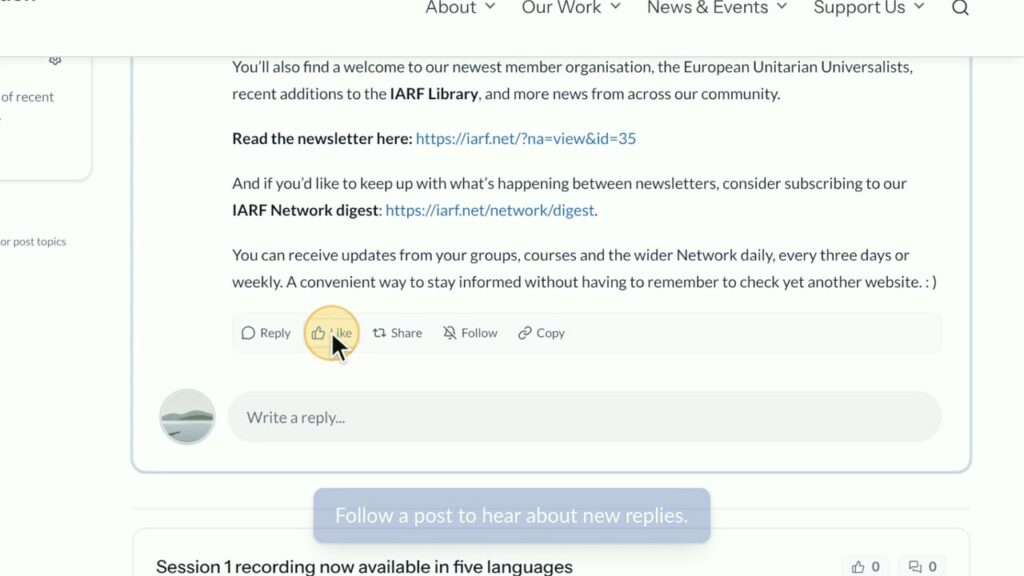 Watch 0:43
Show just the discussions, or browse by theme. Follow a post to hear about new replies, or copy its link to share it with another member. Focus View shows one discussion on its own.
Posting, replies and @mentions
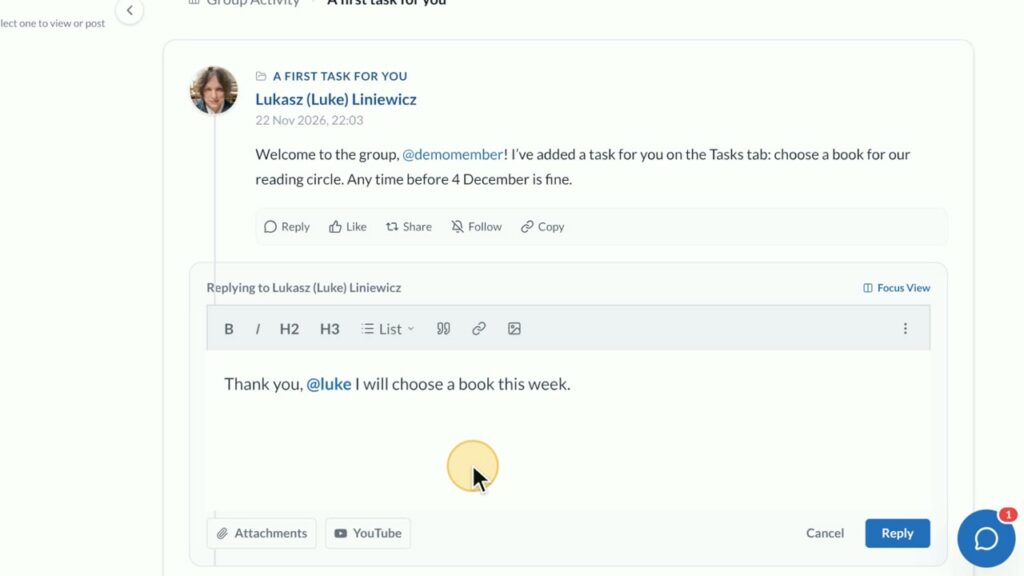 Watch 0:50
Give a new discussion a title so others can find it, and add a photo, video, link or poll. Type @ and a name to mention someone.
Questions
What does an @mention do?
It tells a member you have written to them: they get a notification with a link to your post.
What is Focus View for?
Long discussions are easier to follow on their own. Focus View hides the rest of the feed until you close it.
Will my post be translated?
Posts written in English in the main feed are translated into the Network’s other languages and marked as translated, with a link to the original. Posts in groups, and posts written in other languages, appear as they were written.
Groups
Working groups, chapters and projects meet in groups. Each group has its own feed, members and tasks.
Finding and working in a group
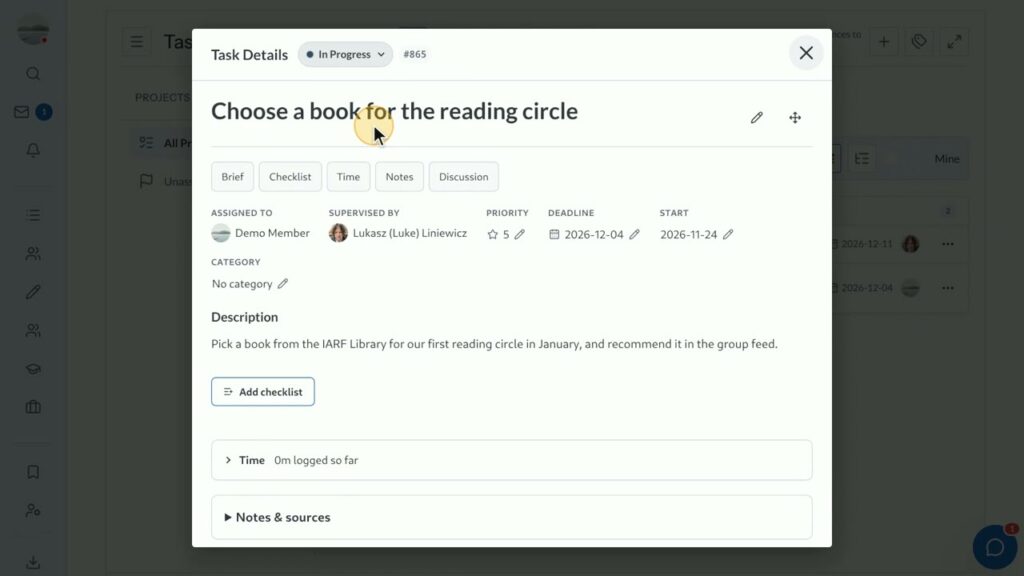 Watch 0:52
Join a public group straight away, or ask to join a private one. Tasks show who does what, and by when. Your tasks from every group also appear on your profile.
Questions
How do I join a working group?
Open Groups and search for it. A public group has Join Group. A private group has Request Access: the group’s organisers decide, and you get a notification either way.
What are tasks for?
They keep track of who does what, and by when. Your own tasks from every group also appear on your profile.
The Library
The IARF Library holds books, articles, recordings and course materials, many in more than one language.
Browsing and searching
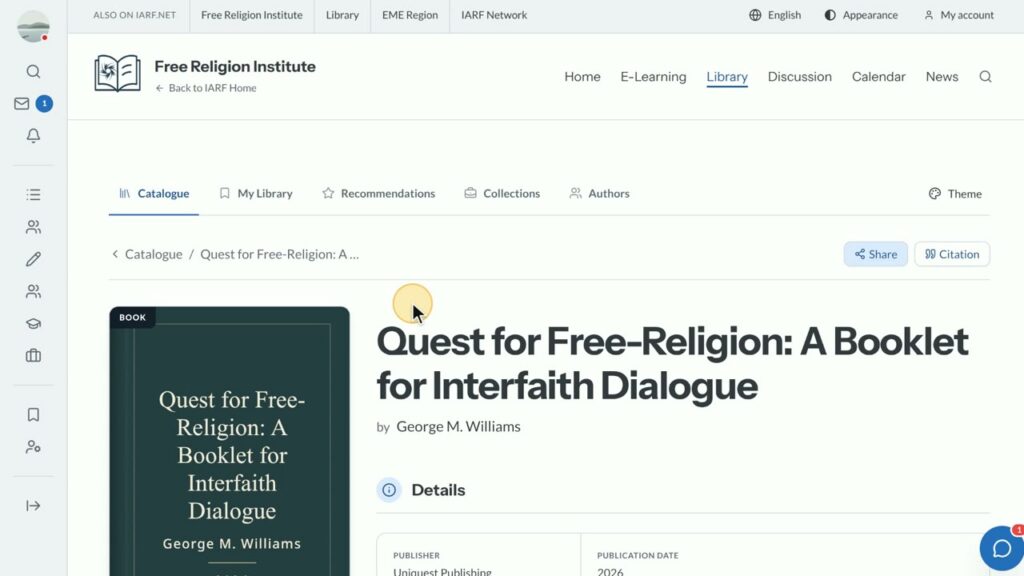 Watch 0:31
Search by title, author or subject, then filter by language or type. An item page lets you read online or download.
Reading, highlights and notes
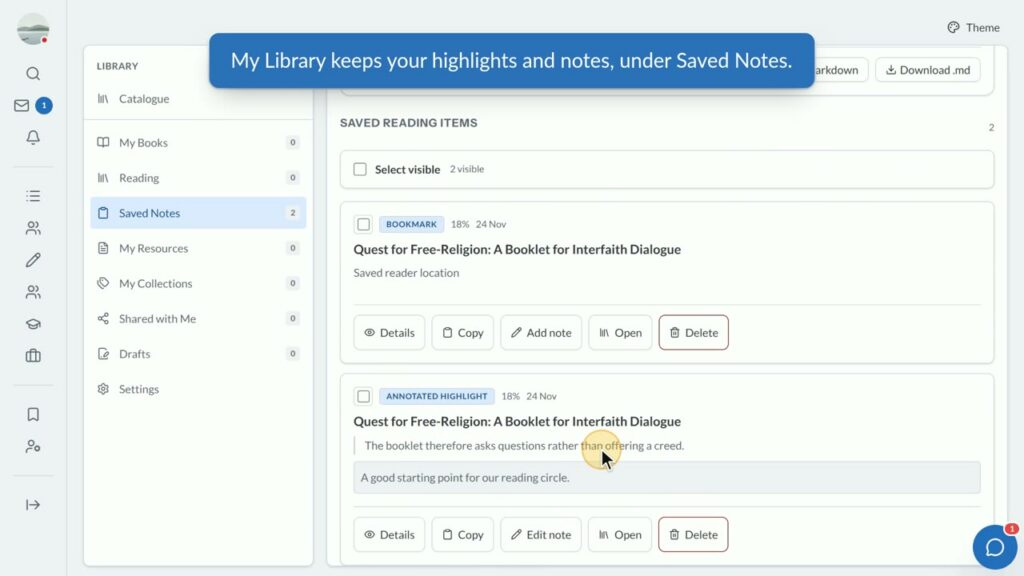 Watch 1:09
Highlight a passage and add your own note: only you see them. My Library keeps your highlights, notes and bookmarks under Saved Notes. You can also recommend a book to a group from the post composer.
Questions
How do I recommend a book?
In a group, start a post and choose Recommend, then Book. Find the book by its title or author and say in a few words why you recommend it. Books in the IARF Library come first, and your post links to their Library page; books from Google Books and Open Library follow.
Where do I find my highlights and notes?
In My Library, under Saved Notes, with your bookmarks.
People and communities
Find other members, IARF’s member organisations and chapters, and services you can join online.
Members and member organisations
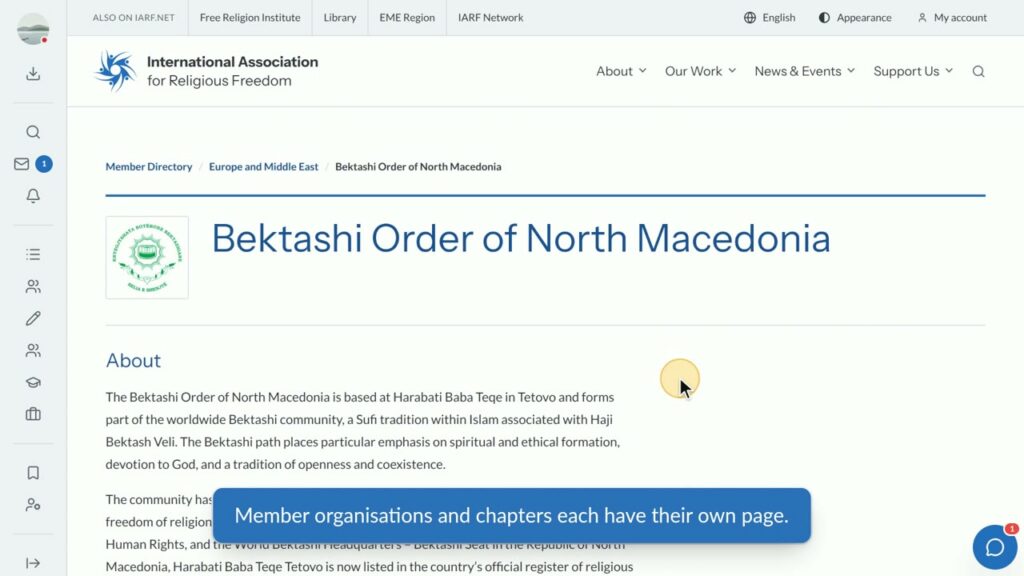 Watch 0:34
Search for members by name, or filter by country, chapter or organisation. Member organisations and chapters each have their own page.
Online worship
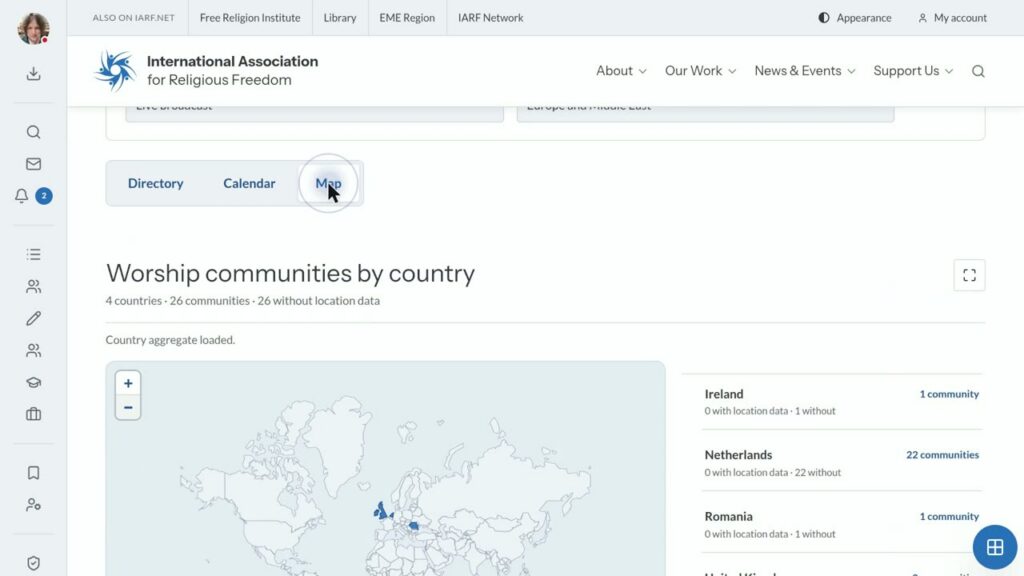 Watch 1:19
The online worship directory gathers services from member communities: live meetings you can join, services you can follow as they are streamed, and recordings for later. It is still a preview, open to members signed in to the Network. This video has sound.
Questions
How do I find members in my country?
Open Members, choose Filters and pick your country.
How do I find a service to join?
Open the online worship directory at iarf.net/online-worship. Search and filter it, or browse it by calendar or on a map.
Messages
Private messages are between you and the people you write to.
Private messages
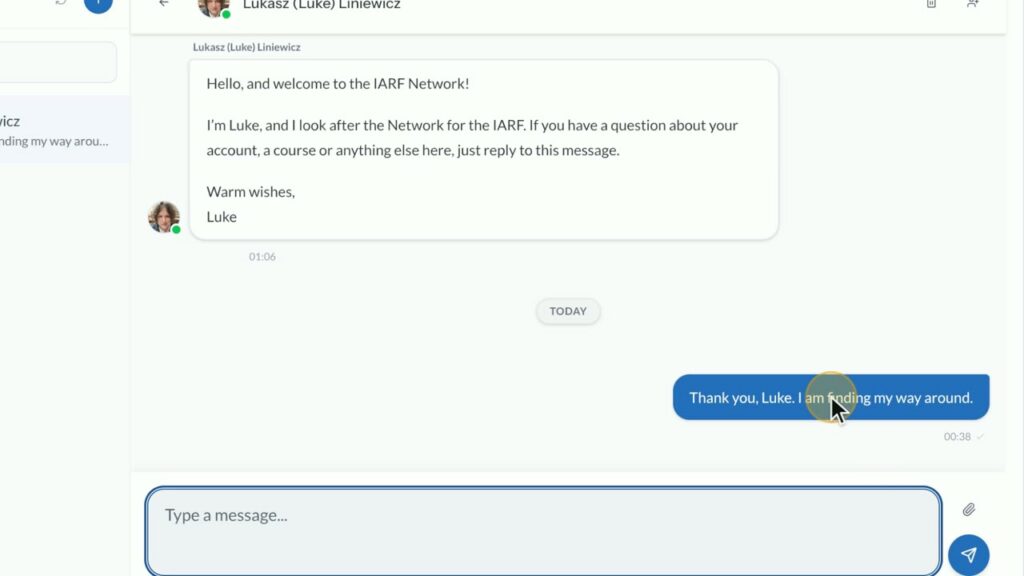 Watch 0:42
Open Messages from the side menu, or start a conversation from a member’s profile. New messages can also come by email: right away, in a summary, or not at all.
Questions
Who can message me?
Any member of the Network. There is no setting to limit it. If a message worries you, write to us at [email protected].
Will I get an email for every message?
Not while you are on the Network. With Right away, we email you when a message has waited unread for a few minutes while you are away, and at most once every half hour for each conversation. In your notification settings you can choose a summary or no email instead.
Languages
The Network speaks seven languages. Choose yours at the top of any page, and your account remembers it.
- English
- Deutsch
- Nederlands
- Magyar
- Polski
- 日本語
- हिन्दी
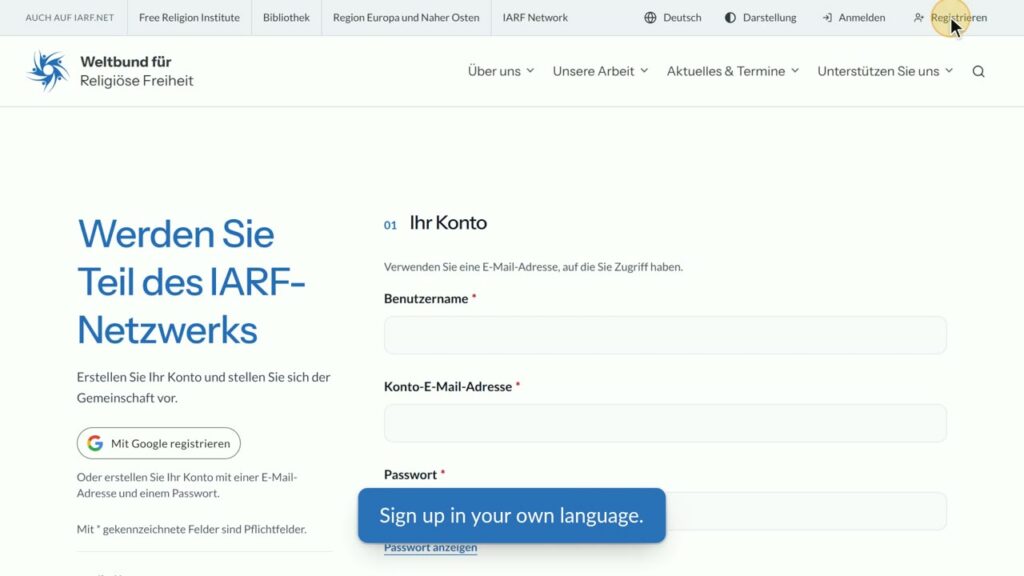
The Network in your language
 Watch 0:45
Visitors can switch too, and sign up in their own language. Each course shows which languages it has for its texts, subtitles and audio.
In your language
- Menus and settings
- The sign-up form
- The site’s pages
- Posts in the main feed that were written in English
- Course pages, where the course has a translation
Still in English for now
- Emails from the Network
- Topic titles in the feed
Questions
Can I use the Network in my language?
Yes, if it is one of the seven above. A course may have fewer: its page shows which.
Ready to join?
Questions this page does not answer? Write to us at [email protected].